Setup Guides
Best IPTV for Firestick UK - The Ultimate 2026 Guide
Transform your Amazon Firestick into a 4K entertainment powerhouse. Here is the definitive guide to the best IPTV for Firestick users in the UK.
Loading StreamVexa...
Quick access to our expert setup guides, region-specific channels, provider comparisons, and latest tutorials.
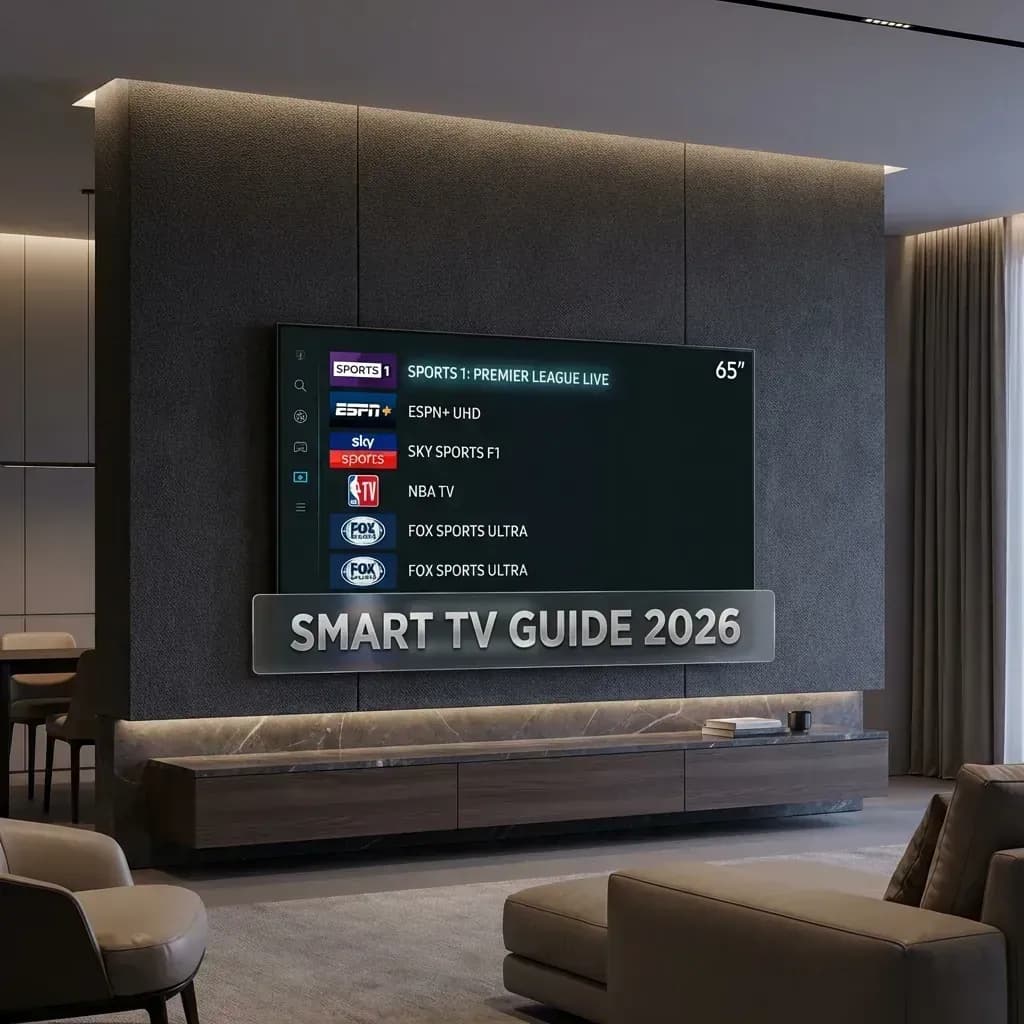
Learn how to get the most out of Smart TV IPTV Guide 2026: Watch on Samsung & LG Without a Firestick with StreamVexa. Watch iptv for samsung smart tv in 4K.
Join 15,000+ others who switched to our Anti-Freeze technology. Get instant access to 25,000+ channels in 4K starting from just 3 months.
If you have a beautiful 65-inch 4K Samsung or LG TV hanging on your wall, the last thing you want is ugly wires and dongles (Firesticks, Android boxes) hanging off the back.
The good news? You don't need them. In 2026, Smart TVs are powerful enough to run high-end IPTV apps natively.
However, finding the right app is tricky because Samsung and LG often remove them from their stores. This guide reveals the Top 3 Apps that still work perfectly in 2026 and how to install them.
With Smarters Pro sometimes disappearing from Tizen/WebOS stores, IBO Player has taken the crown. It is fast, premium, and handles 4K streams beautifully.

http://line.streamvexa.com/get.php?username=...).Pros: very fast channel switching. Cons: 7-day premium plan, then ~8 one-time fee (Worth it).
If you refuse to pay for an app, RoomIPTV is your saviour.
Pros: Free, simple interface. Cons: UI is a bit ugly compared to IBO.
If your ISP blocks IPTV and you can't install a VPN on your Samsung TV (because Samsung/LG doesn't support VPN apps directly), Nanomid is the solution. It is one of the only apps with Internal Proxy/VPN capabilities.
Sometimes, you can still find the legendary Smarters Pro hidden under the name "Smarters Player Lite". ALWAYS search for this first. If it's there, install it immediately. It's the best free option. But if it's missing, use IBO Player.
Smart TVs have weaker WiFi cards than Firesticks. They struggle with buffering if the server isn't optimized. StreamVexa uses Adaptive Bitrate Streaming (ABR). This means if your TV's WiFi hiccups, we don't freeze the screenwe just slightly lower the quality for 2 seconds and then ramp it back up to 4K instantly.
Result: Zero spinning circles.
Test Your Samsung/LG TV Now (Premium Plan) Check Compatibility
Meta Title: Smart TV IPTV Guide 2026: Watch on Samsung & LG Without a Firestick"
Meta Description: Don't buy a Firestick yet. Here is how to install the best native IPTV Apps (IBO Player, Nanomid, RoomIPTV) directly on your Samsung Tizen or LG WebOS TV."
URL Slug: /blog/smart-tv-iptv-setup-2026
Primary Keyword: iptv for samsung smart tv
Secondary Keywords: iptv for samsung smart tv, lg webos iptv apps, ibo player samsung setup, nanomid player review, how to watch iptv on smart tv without box"
Internal Links:
Transform your Amazon Firestick into a 4K entertainment powerhouse. Here is the definitive guide to the best IPTV for Firestick users in the UK.
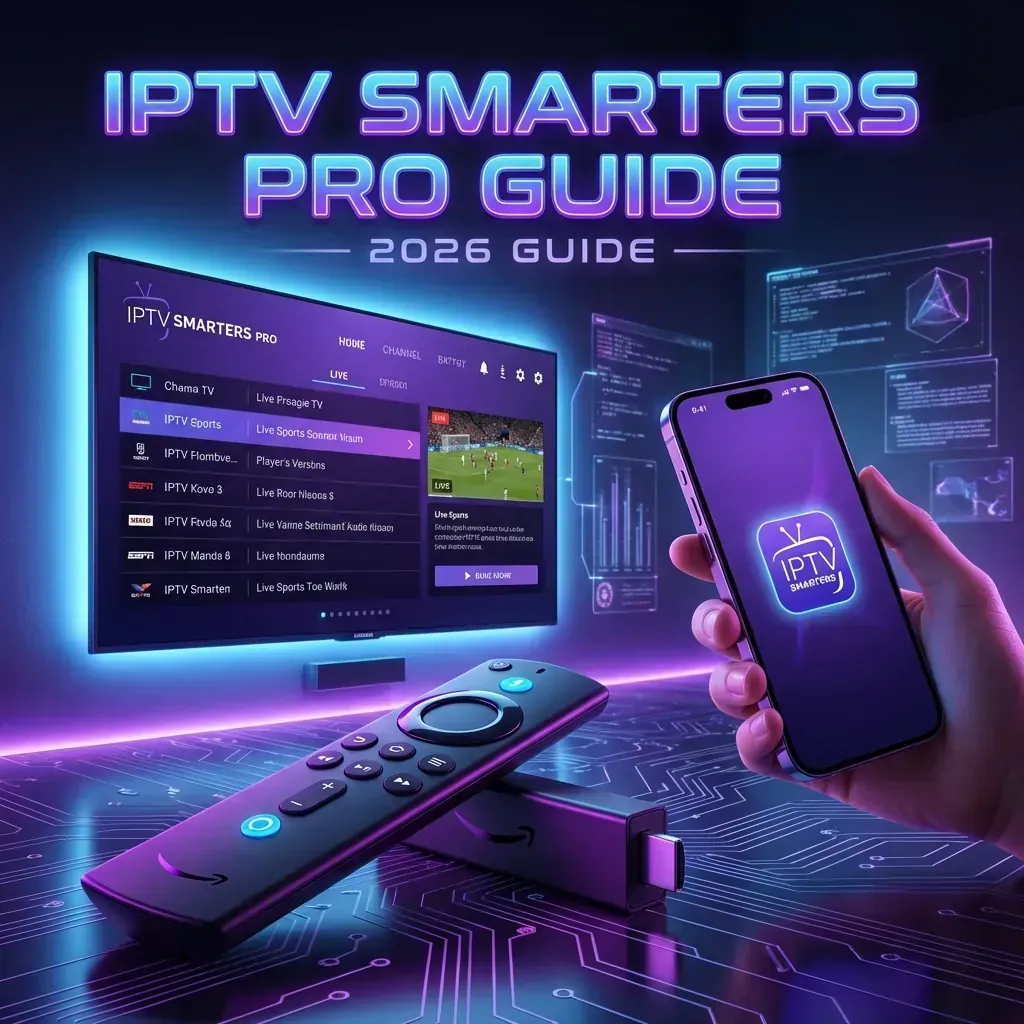
IPTV Smarters Pro is the world's #1 IPTV Player. Here is the step-by-step guide to installing it on Firestick, Samsung Smart TV, LG WebOS, and iPhone in 2026.

Learn how to watch World Cup 2026 live stream in high-bitrate 4K UHD. Stream every match with zero buffering, regional blackouts, or expensive cable bills.