How to Install IPTV on Firestick (Sideloading Guide)

2026-01-04Global5 min read
How to Install IPTV on Firestick (Sideloading Guide) cover image

Experience Zero Buffering?

Test our premium service for 24 hours. No hidden fees.

How to Install IPTV on Firestick (2026 Sideloading Guide)

The Amazon Fire TV Stick remains the undisputed king of streaming devices in 2026. It is cheap, powerful, and incredibly easy to "unlock" (sideload) to access thousands of free and premium IPTV channels.

If you have purchased a Firestick and want to move beyond basic Netflix and Prime Video, this guide is for you. We will walk you through exactly how to install an IPTV player on your Firestick to start watching live TV in minutes.

Prerequisites:

  • Amazon Firestick (Lite, 4K, or 4K Max)
  • Internet connection
  • An IPTV Subscription (Don't have one? Get a 24H Free Trial here)

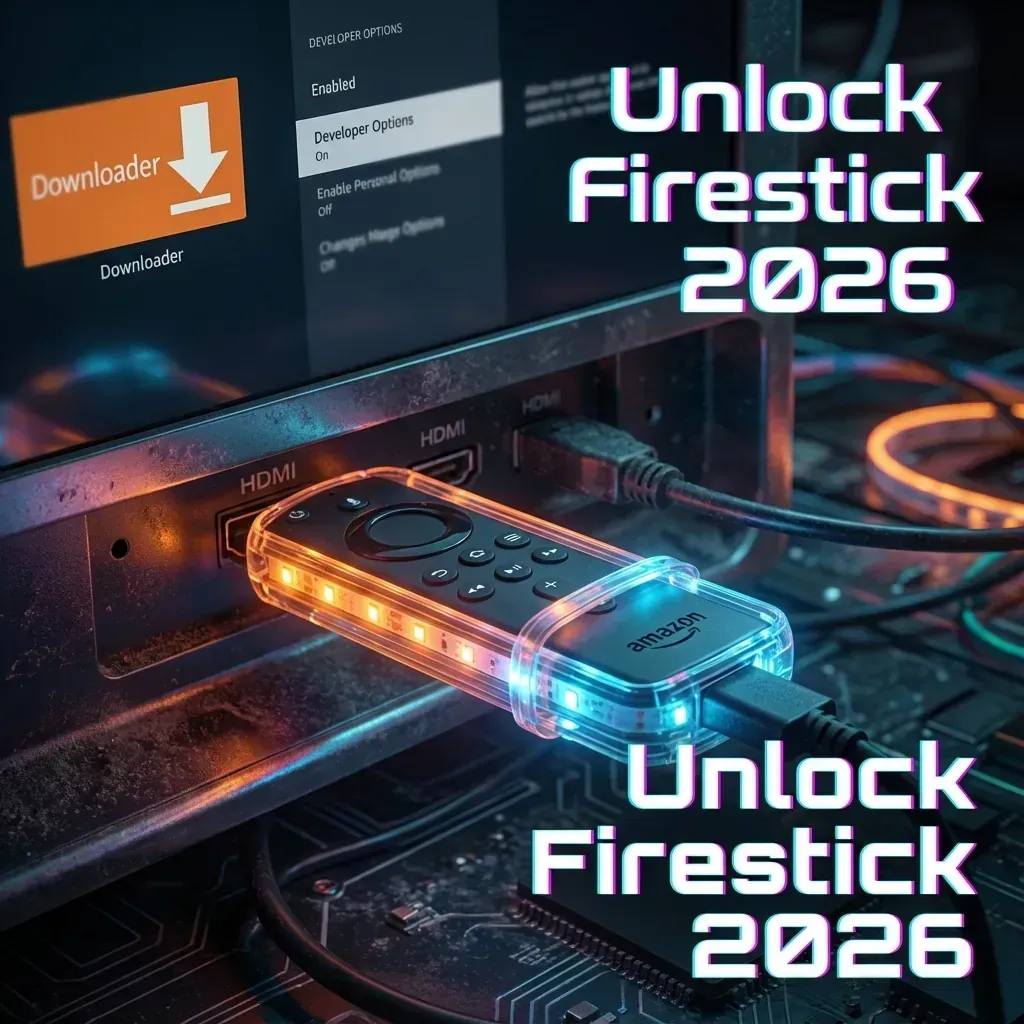
Step 1: Prepare Your Firestick (Enable Developer Options)

Since IPTV apps like IPTV Smarters or TiviMate aren't always in the official Amazon App Store, we need to allow the device to install apps from "Unknown Sources."

  1. From your Firestick Home Screen, go to Settings (Gear icon).
  2. Scroll down and select My Fire TV.
  3. Click on About.
  4. Important: Hover over the name of your device (e.g., "Fire TV Stick 4K Max") and click the Center Button on your remote 7 times fast.
  5. You will see a notification: "No need, you are already a developer."
  6. Press the Back button once.
  7. Select the newly verified Developer Options.
  8. Turn on Apps from Unknown Sources (or "Install Unknown Apps").

Step 2: Install the "Downloader" App

"Downloader" is an official app that lets us download files from the internet onto the Firestick.

  1. Go back to the Home Screen.
  2. Click the Find/Search icon (Magnifying glass).
  3. Type "Downloader".
  4. Select the orange app named Downloader.
  5. Click Download or Get.
  6. Open the app and allow permissions for photos/media (this is needed to save the APK file).

Step 3: Download an IPTV Player (IPTV Smarters Pro)

We recommend IPTV Smarters Pro for beginners. It has a beautiful interface and works perfectly with our service.

  1. Open Downloader.
  2. In the URL box, type the following Short Code for IPTV Smarters:
    • 78522 (or use url: firesticktricks.com/smarter if codes change).
    • (Note: Codes change frequently in 2026. If this doesn't work, search "IPTV Smarters APK" in the Downloader browser).
  3. Click Go.
  4. The file will begin downloading.
  5. Once finished, a popup will ask to install. Click Install.
  6. Click Done (not Open yet).
  7. Pro Tip: Click Delete on the APK file to save space on your Firestick. You don't need the installation file anymore.

Step 4: Configure Your IPTV Service

Now comes the fun part: connecting to the streams.

  1. Go to your Apps & Channels list and open IPTV Smarters Pro.
  2. Accept the Terms of Service.
  3. Select "Login with Xtream Codes API" (This is the fastest, most error-proof method).
  4. You will see 4 boxes:
    • Any Name: Type anything (e.g., "StreamVexa").
    • Username: (Provided by us)
    • Password: (Provided by us)
    • URL: (The server URL provided by us, usually starts with http://...)
  5. Click Add User.
  6. Click on your profile, wait for the Channels, Movies, and Series to download.

Success! You now have access to 15,000+ live channels.

Step 5: Essential Firestick Performance Tweaks

To ensure zero buffering on your Firestick:

  • Ethernet Adapter: If your WiFi is weak, buy a $15 Amazon Ethernet adapter for a hardwired connection.
  • Clear Cache: Regularly go to Settings > Applications > Manage Installed Applications > IPTV Smarters > Clear Cache.
  • Use a VPN: Many ISPs throttle Firestick traffic. A VPN running in the background prevents this.

Troubleshooting Common Errors

"Parse Error"

This means the APK file you downloaded is corrupted or not compatible.

  • Fix: Try a different Downloader code or ensure you are typing the URL correctly.

"Check your internet connection" after login

  • Fix: Double-check the Server URL. One typo (like missing http:// or a port number) will cause this. Also, try turning off your VPN temporarily to log in, then turn it back on.

Buffering on HD/4K Channels

  • Fix: Your Firestick might be overheating or WiFi is weak. Use the HDMI extender cable included in the box to move the Stick away from the back of the TV to improve WiFi reception.

Ready to Test Your New Setup?

You have the Firestick, and you have the App. Now you need the Content.

Don't settle for low-quality, buffer-heavy streams. Test the #1 Rated Premium IPTV Service for 2026.

  • 15,000+ Live Channels
  • 80,000+ Movies & Series
  • Anti-Freeze 4.0 Technology

👉 Click here to get your Login Details via WhatsApp (24H Free Trial)


SEO & Metadata

  • Meta Title: How to Install IPTV on Firestick (2026 Sideloading Guide)
  • Meta Description: A complete step-by-step guide to installing IPTV Smarters on Amazon Fire TV Stick in 2026. Learn to unlock your device and stream free TV in minutes.
  • URL Slug: /blog/how-to-install-iptv-firestick-sideloading
  • Primary Keyword: Install IPTV on Firestick
  • Secondary Keywords: Jailbroken Firestick, Sideload IPTV, IPTV Smarters Firestick, Watch TV on Firestick
  • Internal Links:

Frequently Asked Questions (FAQ)

Is it safe to sideload apps on Firestick? Yes, sideloading is a standard feature built into the Fire TV OS (which is based on Android). As long as you download apps from reputable sources (like the official IPTV Smarters website), it is completely safe.
Which is the best IPTV App for Firestick? We recommend **IPTV Smarters Pro** for beginners due to its ease of use. For advanced users, **TiviMate** is widely considered the best premium player with the most features, but it requires a small purchase.
Why is my Downloader app not working? Ensure you have enabled "Apps from Unknown Sources" in the Developer Options. If you don't see Developer Options, remember to click the device name 7 times in the "About" menu.
Can I watch 4K content on a Firestick Lite? No. The Firestick Lite and standard Firestick only support up to 1080p. To watch 4K IPTV channels, you need the **Fire TV Stick 4K** or **4K Max**.
Do I need to update the IPTV app? Sideloaded apps don't auto-update like Amazon Store apps. You may need to manually uninstall and reinstall a newer version once a year, but generally, if it works, you don't need to update it.

Ready to switch to Premium?Get your login details instantly via WhatsApp.